JETSON ONRIN NX FACTORY RESET
ㅁ JETSON ONRIN NX FACTORY RESET
- 출처 : https://wiki.seeedstudio.com/reComputer_J4012_Flash_Jetpack/
- SEEEDSTUDIO J4012 사용중으로 6.1로 공장초기화 가이드
Flash JetPack OS to J401 Carrier Board
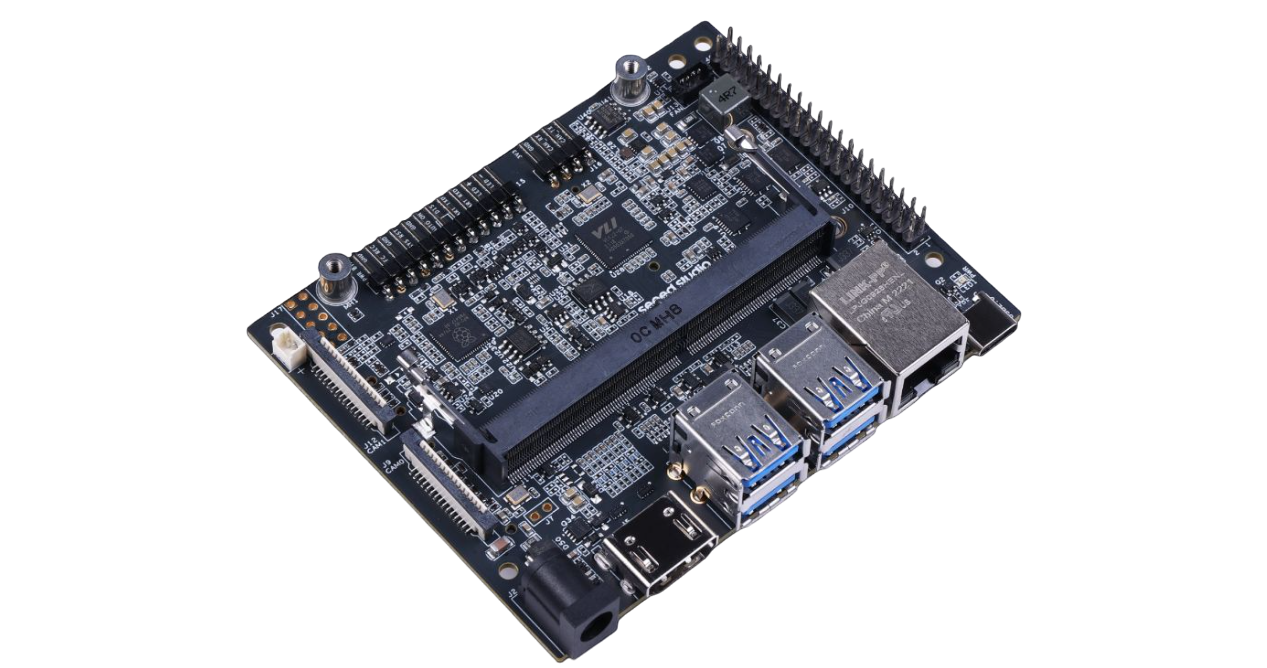
The J401 carrier board is a powerful extension board that supports NVIDIA Jetson Orin NX/Nano modules. It features 1xGbE port, 1x CAN for data transfer, M.2 Key M for SSD, M.2 Key E for WiFi/BlueTooth, 2 CSI, and 1 HDMI for high-quality video capture and display. It also contains 4x USB 3.2 ports, a fan, RTC, and a flexible 9-19V power supply. All of these make it reliable for a variety of industrial automation systems, building powerful AI applications.
Features
- Exceptional Performance Carrier Board: Support the NVIDIA Jetson Orin NX/Nano module, leveraging powerful computing power to take on tough tasks with ease
- Versatile Connectivity: Offer 1x Gigabit Ethernet port for networking, 4x USB 3.2 Type-A (10Gbps) ports,1x USB2.0 Type-C port, 1x CAN connector for fast data transfer
- Flexible Storage and Wireless Expansion: Mount with 1x M.2 Key M 2280 and 1x M.2 Key E slots, offering ample space for flexible storage and wireless connectivity expansion
- Advanced Peripherals Supported: Assemble 2x 15 pins CSI camera connector, 1x HDMI 2.1, 1x fan, 1x RTC for multiple peripherals
- Wide Range of Input Voltages: From 9-19V DC, providing flexibility in power supply options
Specifications
| Specifications | reComputer J3010 | reComputer J3011 | reComputer J4011 | reComputer J4012 |
|---|---|---|---|---|
| Module | Jetson Orin Nano 4GB | Jetson Orin Nano 8GB | Jetson Orin NX 8GB | Jetson Orin NX 16GB |
| AI Performance | 20 TOPS | 40 TOPS | 70 TOPS | 100 TOPS |
| GPU | 512-core NVIDIA Ampere architecture GPU with 16 Tensor Cores | 1024-core NVIDIA Ampere architecture GPU with 32 Tensor Cores | 1024-core NVIDIA Ampere architecture GPU with 32 Tensor Cores | |
| GPU Max Frequency | 625 MHz | 765 MHz | 918 MHz | |
| CPU | 6-core Arm® Cortex®-A78AE v8.2 64-bit CPU 1.5MB L2 + 4MB L3 |
6-core Arm® Cortex®-A78AE v8.2 64-bit CPU 1.5MB L2 + 4MB L3 | 8-core Arm® Cortex®-A78AE v8.2 64-bit CPU 2MB L2 + 4MB L3 | |
| CPU Max Frequency | 1.5 GHz | 2 GHz | ||
| Memory | 4GB 64-bit LPDDR5 34 GB/s |
8GB 128-bit LPDDR5 68 GB/s |
8GB 128-bit LPDDR5 102.4GB/s | 16GB 128-bit LPDDR5 102.4GB/s |
| DL Accelerator | / | 1x NVDLA v2 | 2x NVDLA v2 | |
| DLA Max Frequency | / | 614 MHz | ||
| Vision Accelerator | / | 1x PVA v2 | ||
| Storage | 128GB NVMe SSD | |||
| Video Encoder | 1080p30 supported by 1-2 CPU cores | 1x 4K60 (H.265) | 3x 4K30 (H.265) 6x 1080p60 (H.265) | 12x 1080p30 (H.265) |
||
| Video Decoder | 1x 4K60 (H.265) 2x 4K30 (H.265) 5x 1080p60 (H.265) 11x 1080p30 (H.265) |
1x 8K30 (H.265) | 2x 4K60 (H.265) | 4x 4K30 (H.265) 9x 1080p60 (H.265) | 18x 1080p30 (H.265) |
||
| Display | 1* HDMI 2.1 | |||
| CSI Camera | 2* CSI (2-lane 15pin) | |||
| Networking | 1* Gigabit Ethernet (10/100/1000M) | |||
| USB | 4* USB 3.2 Type-A (10Gbps); 1* USB2.0 Type-C (Device Mode) | |||
| M.2 Key M | 1* M.2 Key M | |||
| M.2 Key E | 1* M.2 Key E | |||
| Fan | 1* 4 pin Fan Connector(5V PWM) | |||
| CAN | 1* CAN | |||
| Multifunctional Port | 1* 40-Pin Expansion header,1* 12-Pin Control and UART header | |||
| RTC | RTC 2-pin, RTC socket (supports CR1220 but not included) | |||
| Power | 9-19V | |||
| Power Supply | Power adapter not included | |||
| Temperature | -10℃~60℃ | |||
| Mechanical | 130mm x120mm x 58.5mm | |||
Hardware Overview
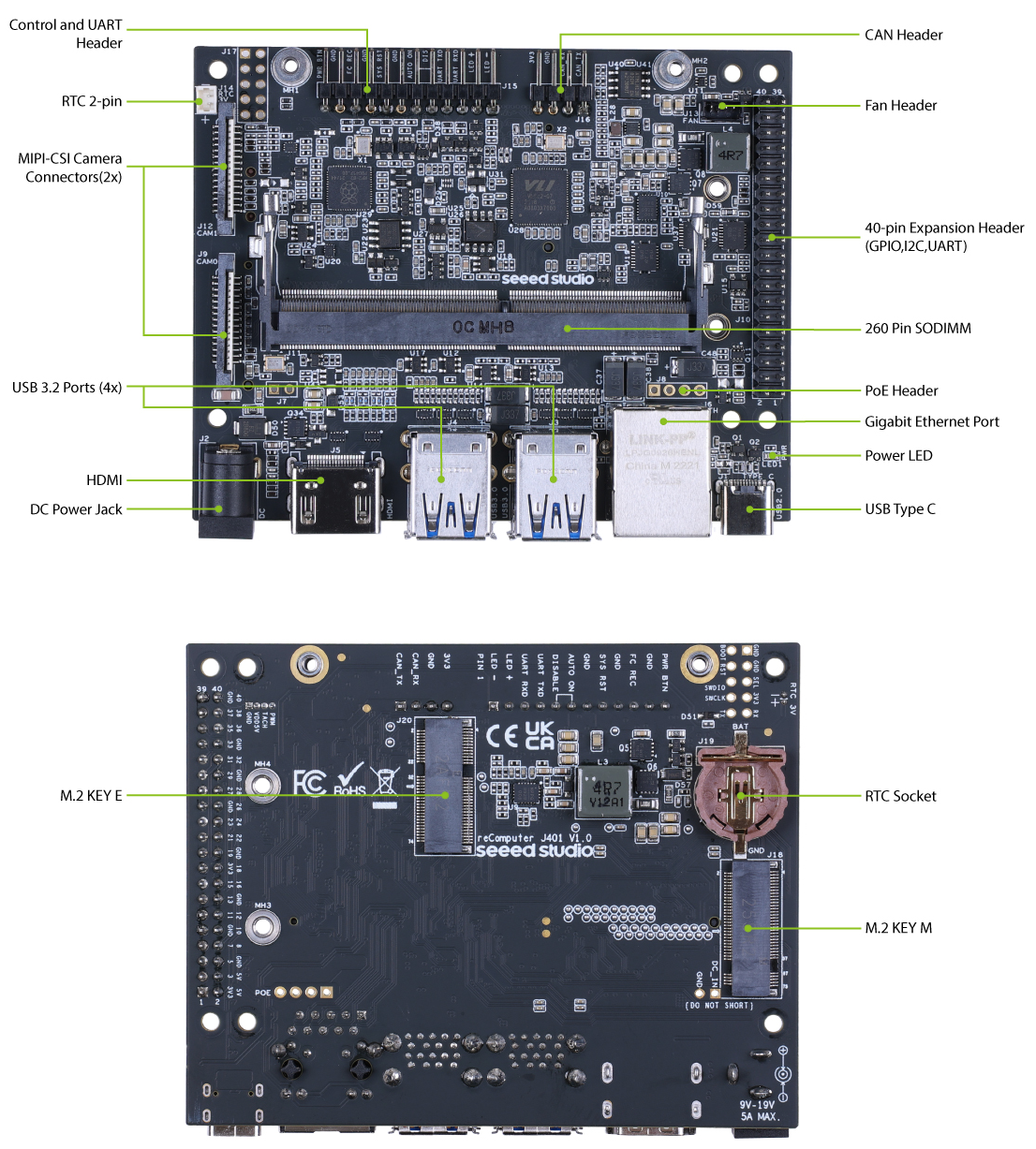
Flash JetPack
Here, we will show you how to flash Jetpack to an NVMe SSD connected to the reComputer J4012/ J4011/ J3010 and J3011. All these devices come with J401 carrier board inside and the flashing procedure is the same for all.
reComputer J40/ J30 series comes with JetPack 5.1 pre-installed on the included NVMe SSD, so that you do not need to flash it. However, if you want to flash it again with JetPack, you can follow this guide.
Supported Module
- NVIDIA® Jetson Orin™ Nano Module 4GB
- NVIDIA® Jetson Orin™ Nano Module 8GB
- NVIDIA® Jetson Orin™ NX Module 8GB
- NVIDIA® Jetson Orin™ NX Module 16GB
Prerequisites
- Ubuntu Host Computer
- reComputer J4012/ J4011/ J3010 or J3011
- USB Type-C data transmission cable
info
We recommend that you use physical ubuntu host devices instead of virtual machines. Please refer to the table below to prepare the host machine.
| JetPack Version | Ubuntu Version (Host Computer) | ||
| 18.04 | 20.04 | 22.04 | |
| JetPack 5.x | ✅ | ✅ | |
| JetPack 6.x | ✅ | ✅ | |
Enter Force Recovery Mode
note
- We do not recommend using virtual machines and ARM architecture Ubuntu for flashing.
- Before we can move on to the installation steps, we need to make sure that the board is in force recovery mode.
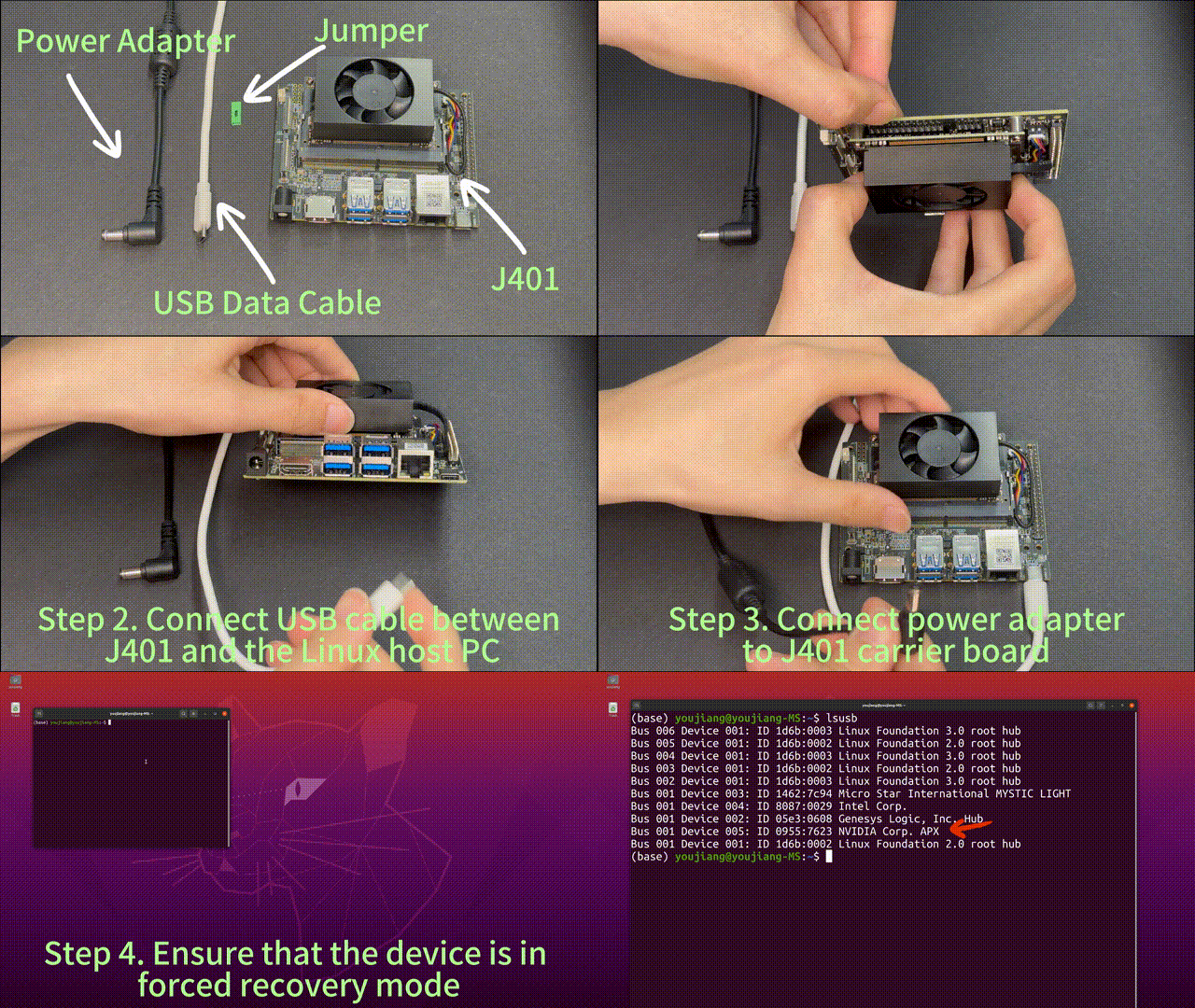
Step-by-Step
Flash the device step by step
note
Before moving onto flashing, it should be noted that Jetson Orin NX module only supports JetPack 5.1 and above, while Jetson Orin Nano module only supports JetPack 5.1.1 and above.
First of all, install the below required dependencies on the Ubuntu Host PC before moving onto flashing JetPack.
sudo apt install qemu-user-static sshpass abootimg nfs-kernel-server libxml2-utils binutils -y
caution
NVIDIA has updated the DRAM used in its modules. To ensure compatibility with the new modules, we have updated JetPack accordingly. The currently stable and supported version is JetPack 5.1.3. If the DRAM on your module is from Hynix (this can be identified from the markings on the chip package), it is recommended to flash JetPack 5.1.3.
- JP5.1.1
- JP5.1.2
- JP5.1.3
- JP6.0
- JP6.1
- JP6.2
Here we will use NVIDIA L4T 36.4 to install Jetpack 6.1 on the reComputer
Step 1: Download the system image to your Ubuntu PC corresponding to the Jetson module you are using:
| Jetson Module | Download Link | SHA256 |
|---|---|---|
| Orin NX 16GB | Download | b848e327b87c408565b899a11c52022b42df6de4f3dce1e5470cb2a7baccc898 |
| Orin NX 8GB | Download | 3839c99fc9e2da1f35de824c42b7bb56f9660d8f4a6ce68b196c6cb50d5d4fb4 |
| Orin Nano 8GB | Download | a0863e7209351f9165cf6bd2d756a6a726b2e8fc1fa54b5d66279d5b136a3a33 |
| Orin Nano 4GB | Download | a40edfbcda9a7a07fbf72ca4e3149d171236f5ede2c4e3a5e243da77562f9b13 |
info
To verify the integrity of the downloaded firmware, you can compare the SHA256 hash value.
On an Ubuntu host machine, open the terminal and run the command sha256sum <File> to obtain the SHA256 hash value of the downloaded file. If the resulting hash matches the SHA256 hash provided in the wiki, it confirms that the firmware you downloaded is complete and intact.
Step 2: Extract the downloaded image file:
sudo tar xpf mfi_xxxx.tar.gz
# For example: sudo tar xpf mfi_recomputer-orin-nx-16g-j401-6.1-36.4.0-2026-02-07.tar.gz
Step 3: Navigate to the unzipped directory and execute the following command to flash jetpack system to the NVMe SSD:
cd mfi_xxxx
# For example: cd mfi_recomputer-orin-j401
sudo ./tools/kernel_flash/l4t_initrd_flash.sh --flash-only --massflash 1 --network usb0  --showlogs
You will see the following output if the flashing process is successful

note
The flash command may run for 2-10 minutes.
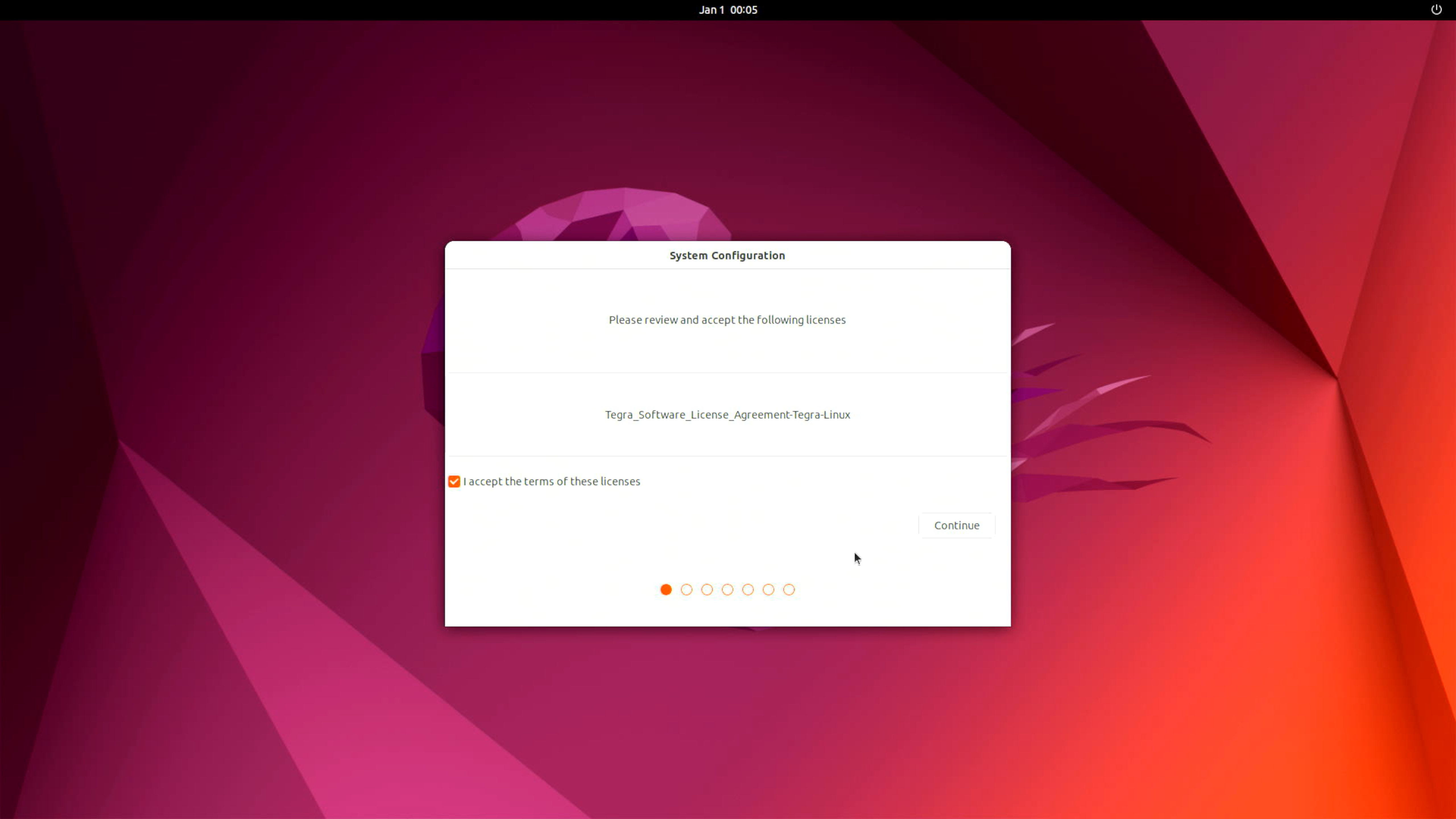
Step 4: Connect the J401 to a display using the HDMI connector on the board and finish the initial configuration setup:
info
Please complete the System Configuration according to your needs.
댓글